Finding tenders
Where Hankevo gets tenders from, how the tender list differs from opportunities, and how to search, sort and open the official notice.
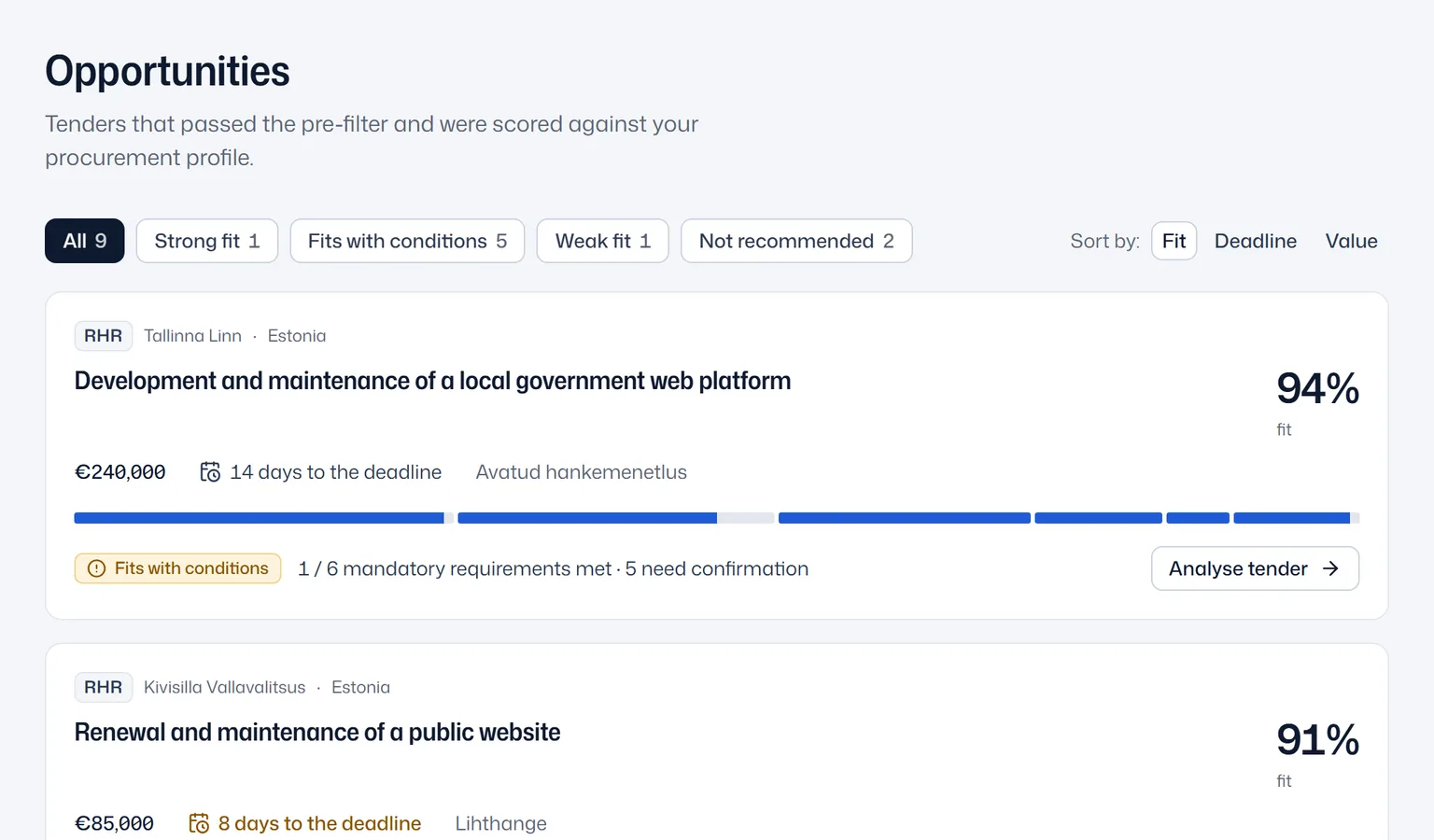
Hankevo has two screens for tenders. Tenders is the list of every tender read from the sources. Opportunities shows the open ones that have enough in common with your company profile, with a fit score and the reasons. Start with opportunities; search the full list when you want to browse the market yourself.
Where tenders come from
Hankevo reads the notices of buyers in Estonia from two official sources: the open data of the Estonian public procurement register (Riigihangete register) and TED, the European Union's publication for procurement notices. A tender published in both appears once, and its row carries the mark of each source. Under the list you can see when each source was last read. If a source has fallen behind, a note above the list says so: newer tenders may then be missing.
The tender list
- Choose a view: Open, Prior information, Closed or All. Each view shows its number of tenders.
- Type the words you are looking for into Search terms. Hankevo looks for them in the title and the description of a tender. A tender is found when it has every word; the start of a word is enough.
- To narrow the field, type the start of a code into CPV code, for example
72. Separate several codes with commas. - Press Search. Clear the search removes the search.
Open tenders are ordered by deadline, nearest first; the other views show the most recently published first. This list has no other order.
Each row shows the estimated value, the deadline and a status: Open, Deadline passed, Deadline unknown, Prior information, Contract awarded or Closed without a contract. The deadline is the one for submitting bids; where requests to participate come first, their deadline is shown.
Opportunities
The views of opportunities are Active, Bidding, Saved and Hidden. You can sort by Fit, Deadline or Value. Save keeps an opportunity after its deadline too. Hide moves it to the hidden ones, where you can restore it. The owner, administrators and members can save and hide.
A note above the list says when tenders were last compared with your profile. See also what the fit percentage shows and why the list can be empty.
Opening the official notice
Open a tender from its title or with Open tender. The side panel of the tender page has the buttons Open the tender documents, Open in the procurement register and Open the notice on TED; you see the ones the notice gives a link for. The section Notices lists every notice of the tender.
Last checked October 19, 2026